OPay Opencart Plugin
Throughout this page, you will learn how to install, configure, and activate the OPay payment plugin in your Opencart store. After following closely the steps explained below, your Opencart shop will be able to start accepting payments through OPay's payment channels.
Before you start
The OPay payment integration with Opencart is simple and we've provided easy steps to help you get up and running!

Note
Make sure you have an active OPay account or you can create an account.
In order to have a smooth and seamless integration, make sure you have the following compatibility list satisfied.
| item | compatible version | References |
|---|---|---|
| Opencart | 3.0.x.x or higher | opencart.com |
| PHP version | 7.4 or higher depending on your opencart version | opencart.com |
Store Setup
This section illustrates the steps to configure your Opencart store. Please follow the simple steps outlined below to get your store ready for plugin installation.
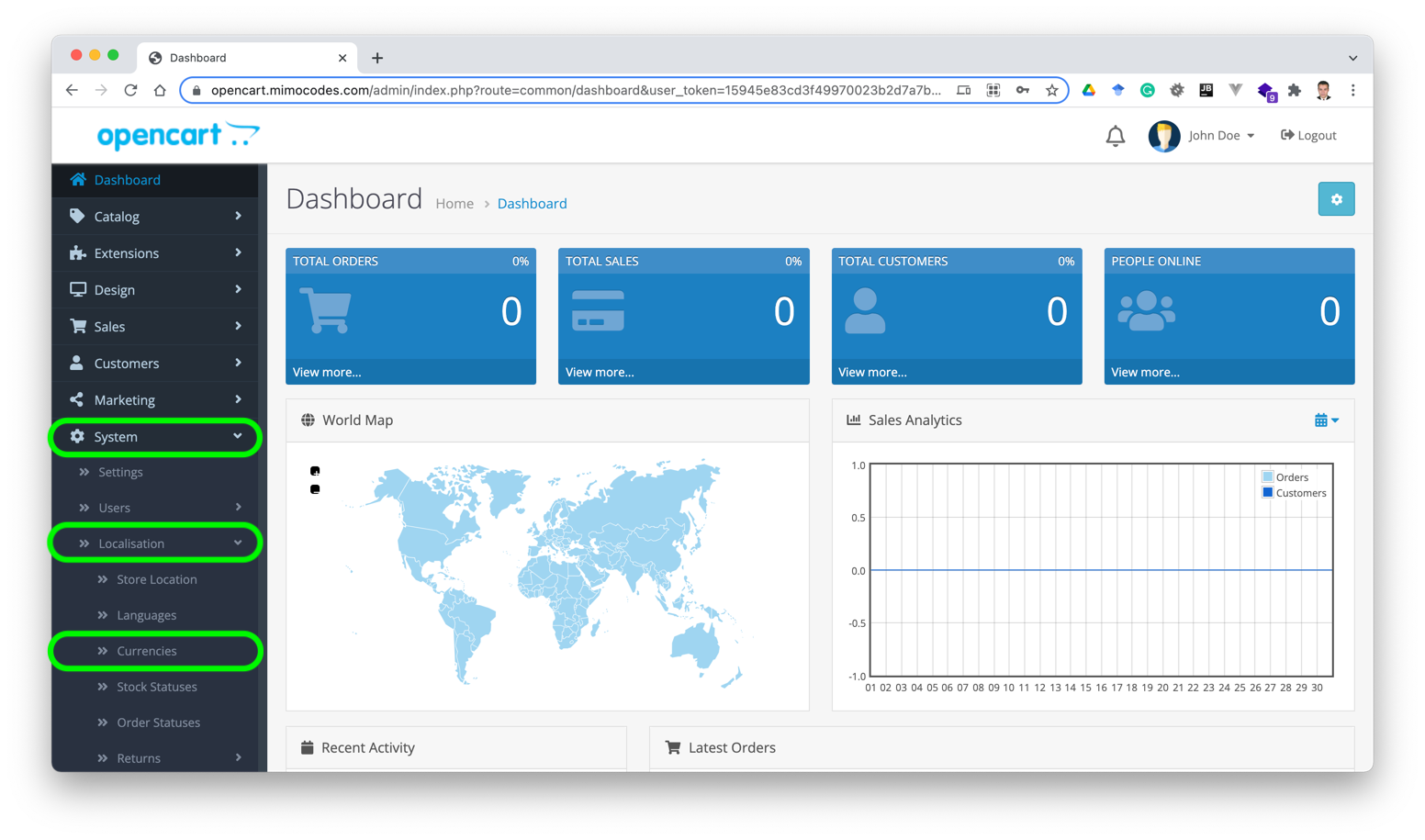
- Login to your Opencart store admin panel.
- Click on
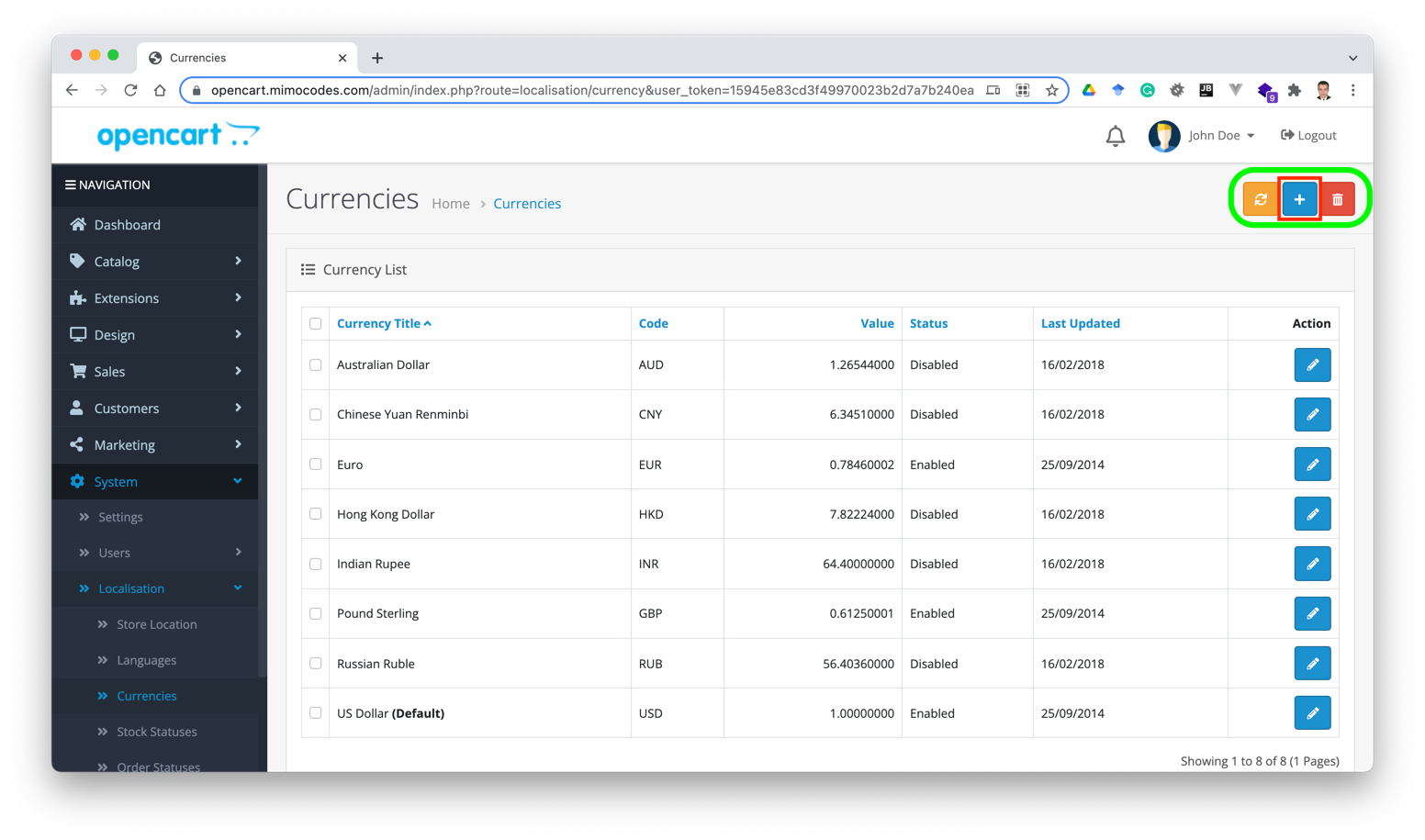
System->Localisation->Currencies. - Click on
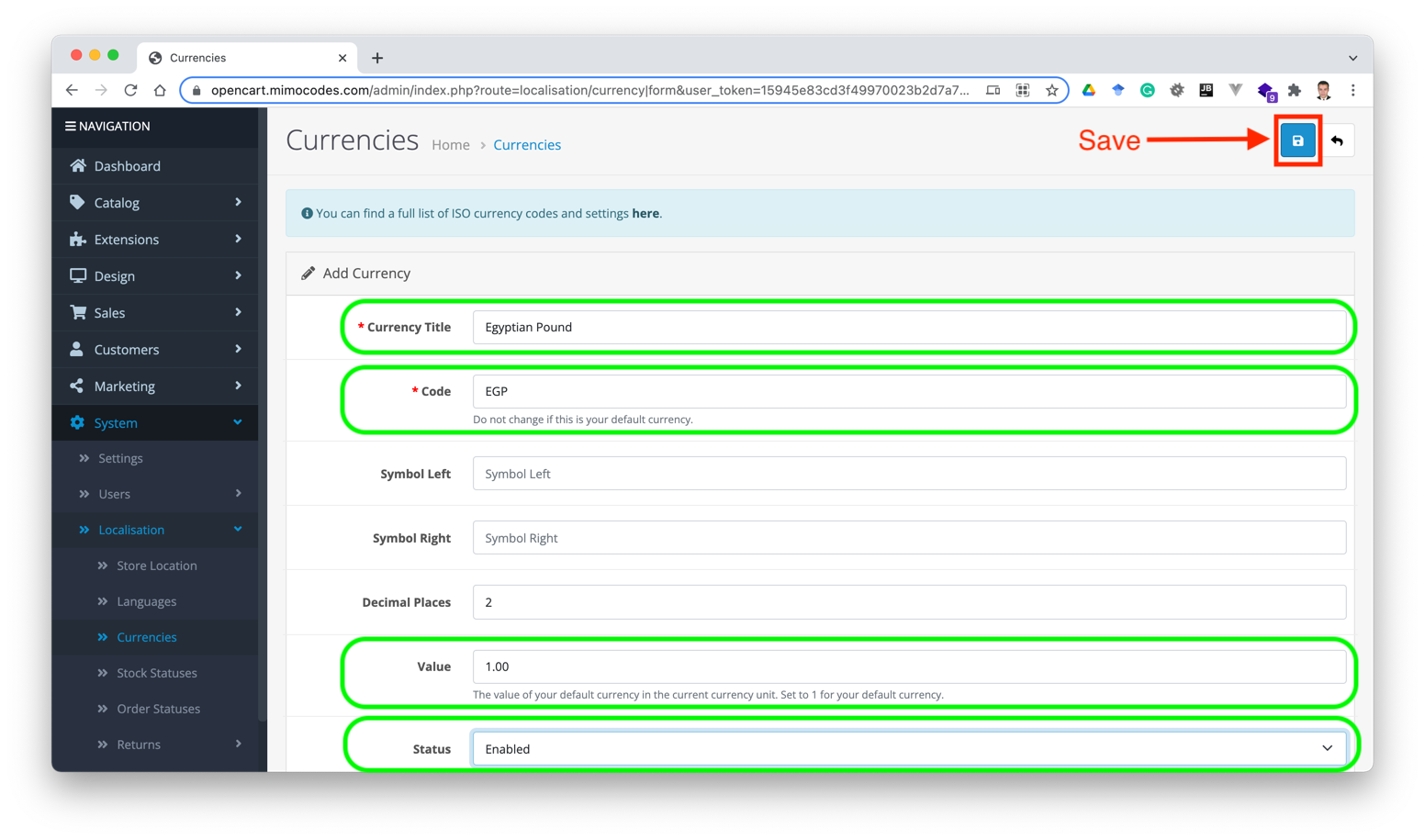
+to add new currency. - Enter currency information, set the currency status to
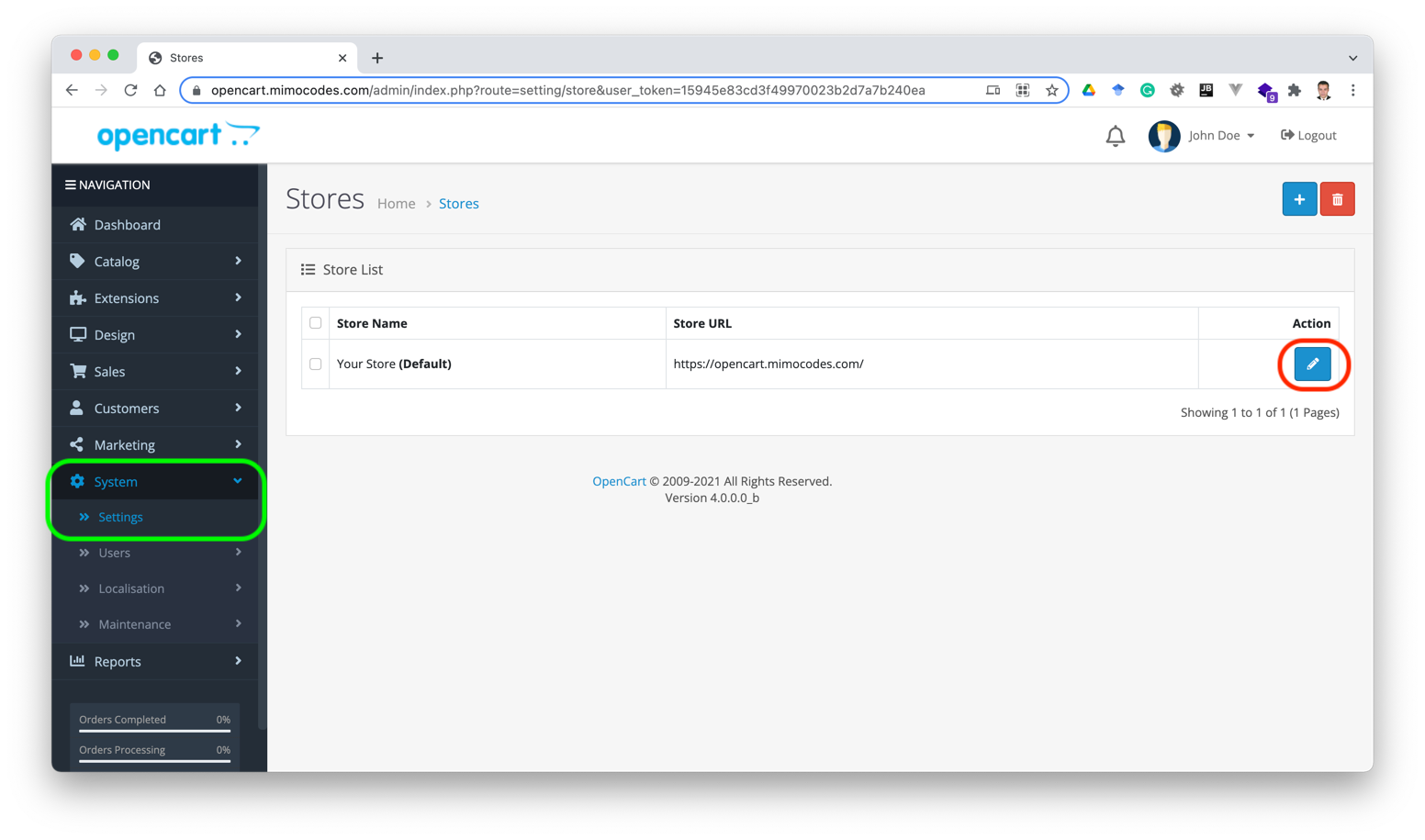
Enabled, and then clickSave. - Click on
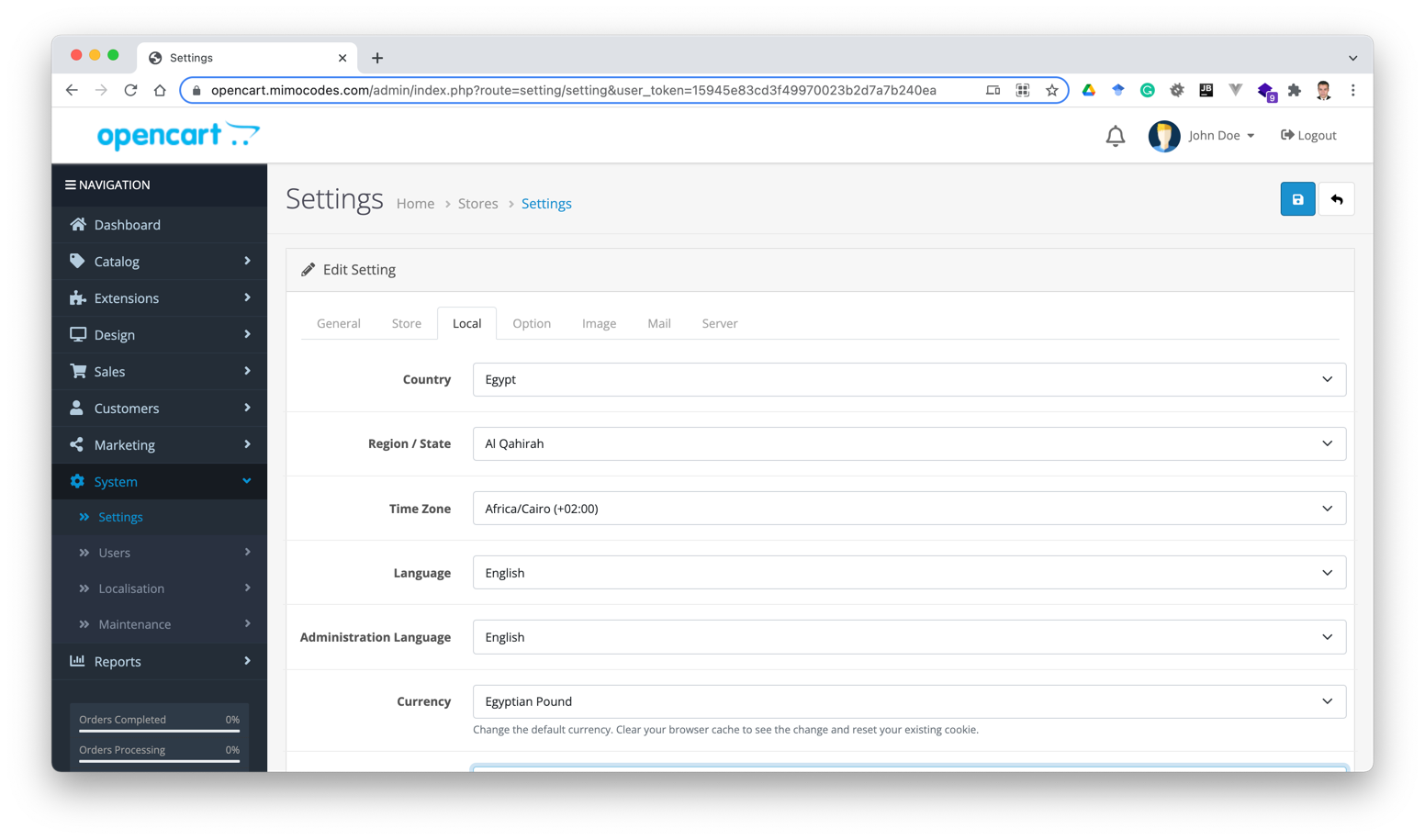
System->Settings, and then click onEditto edit your store country and currency defaults. - Change your store Country and Currency defaults and then click
Save. - Well done, you have successfully configured your Opencart store.
Note
Country and currency unit set for store in opencart has to be consistent with that of Merchant ID.
Installation
After completing the configuration, please follow the steps below to install OPay's Opencart plugin.
- the plugin.
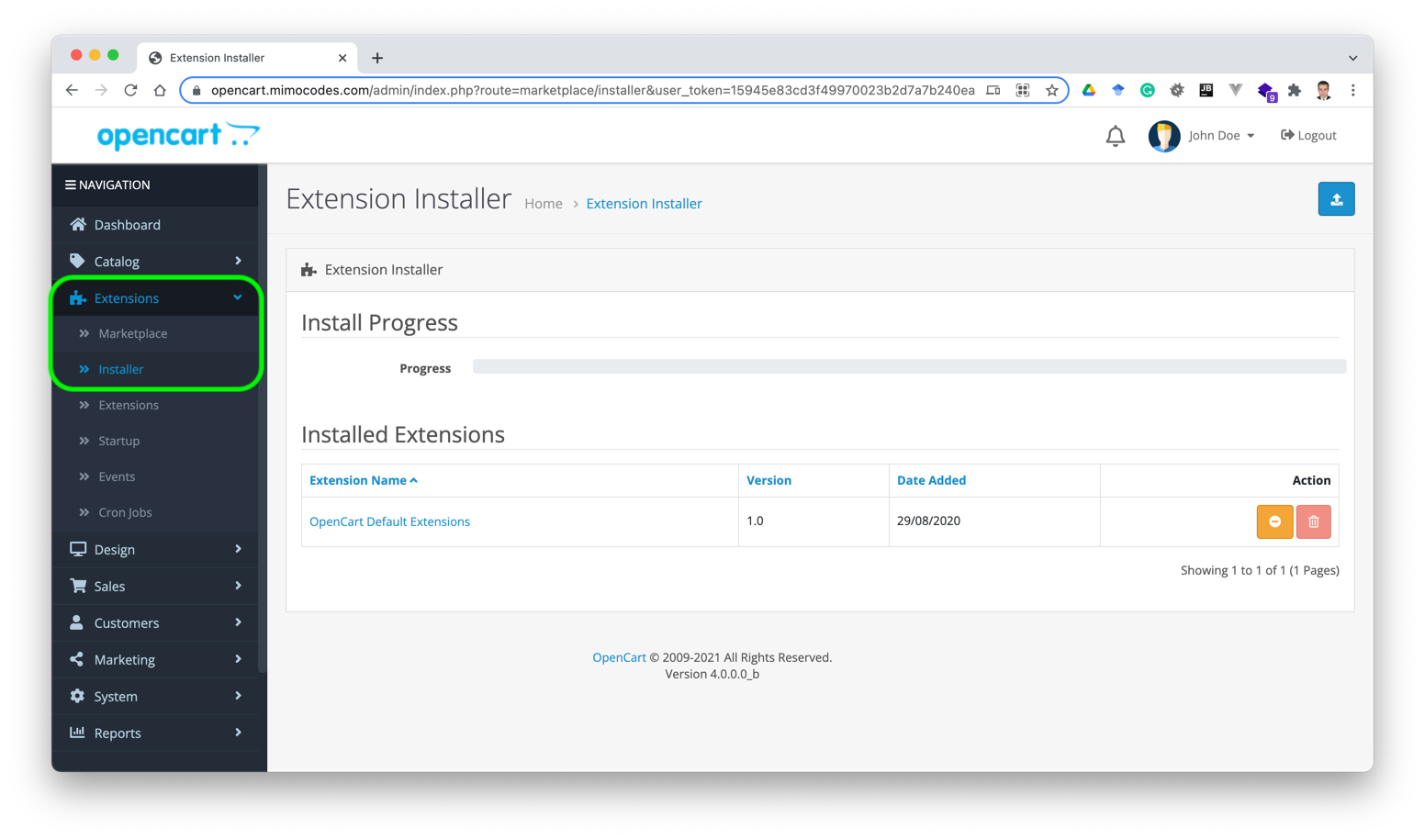
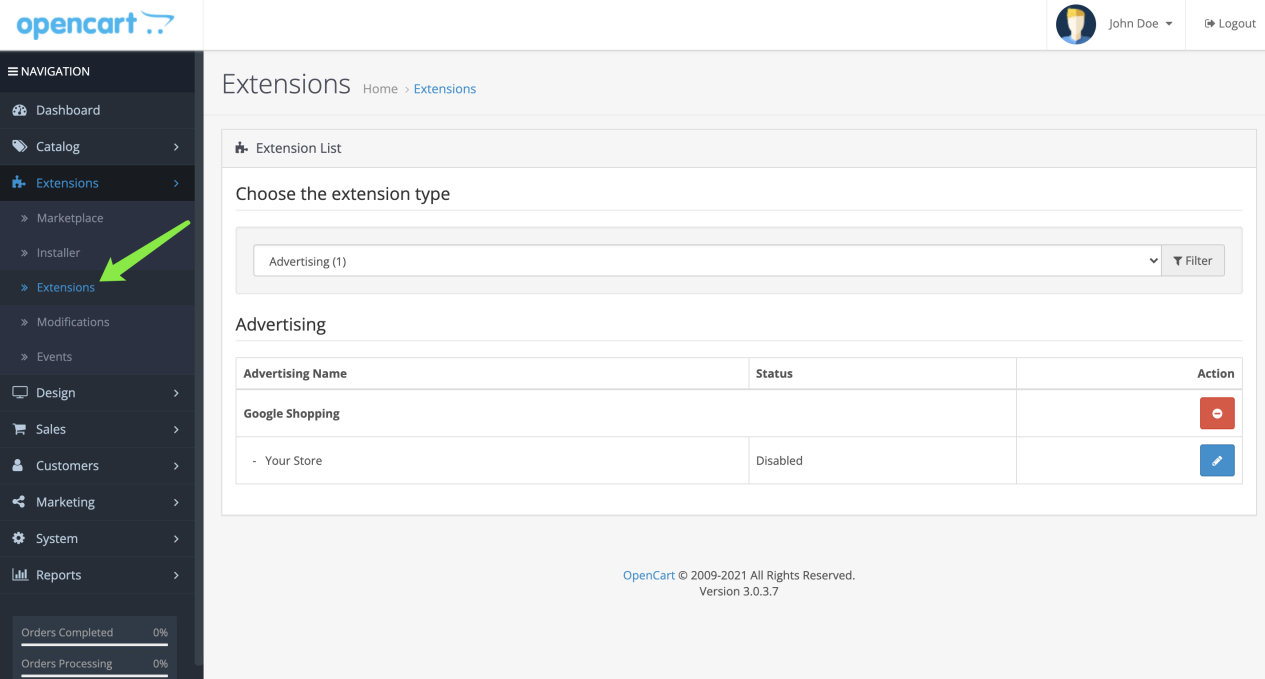
- Click on
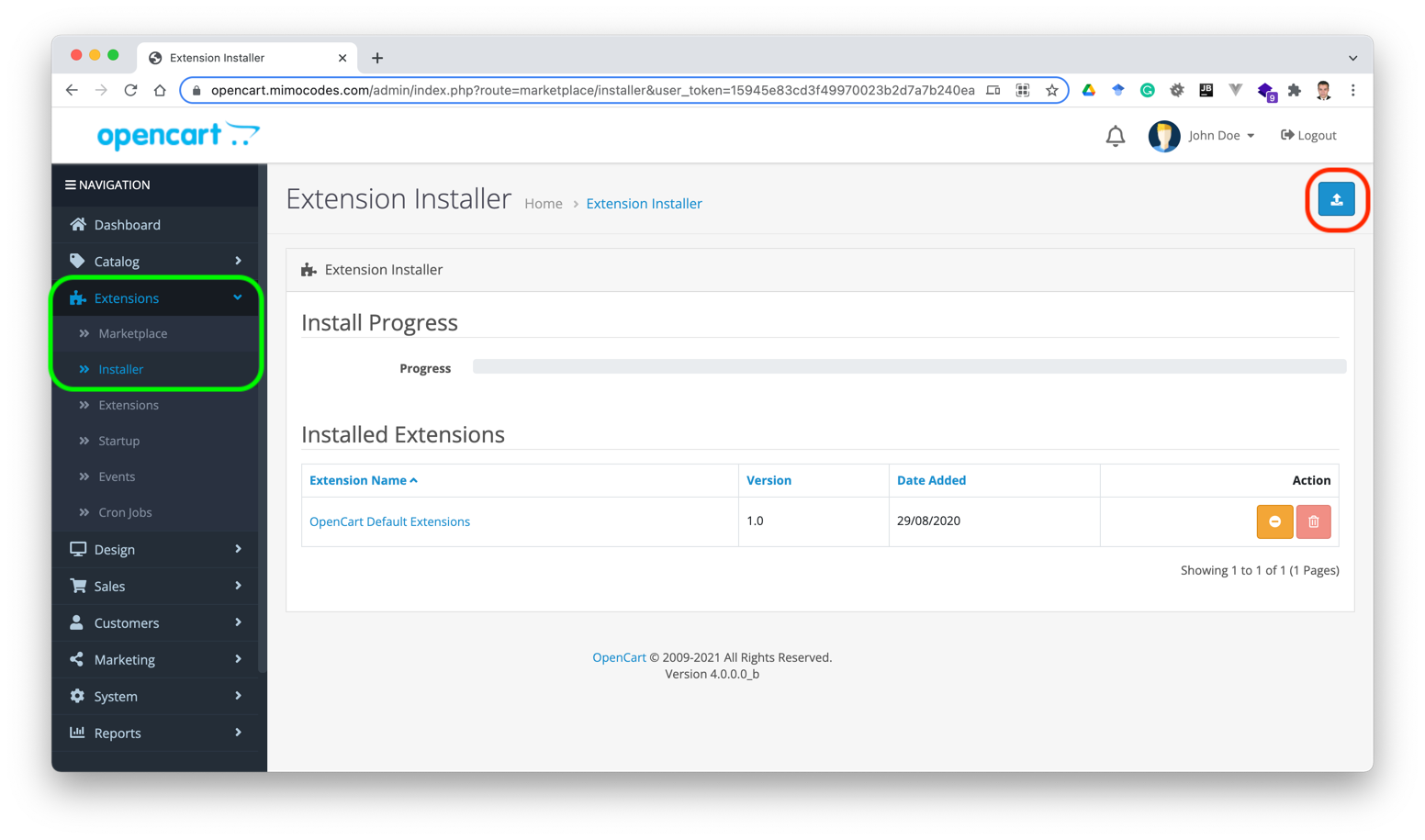
Extensions->Installer. - Click on
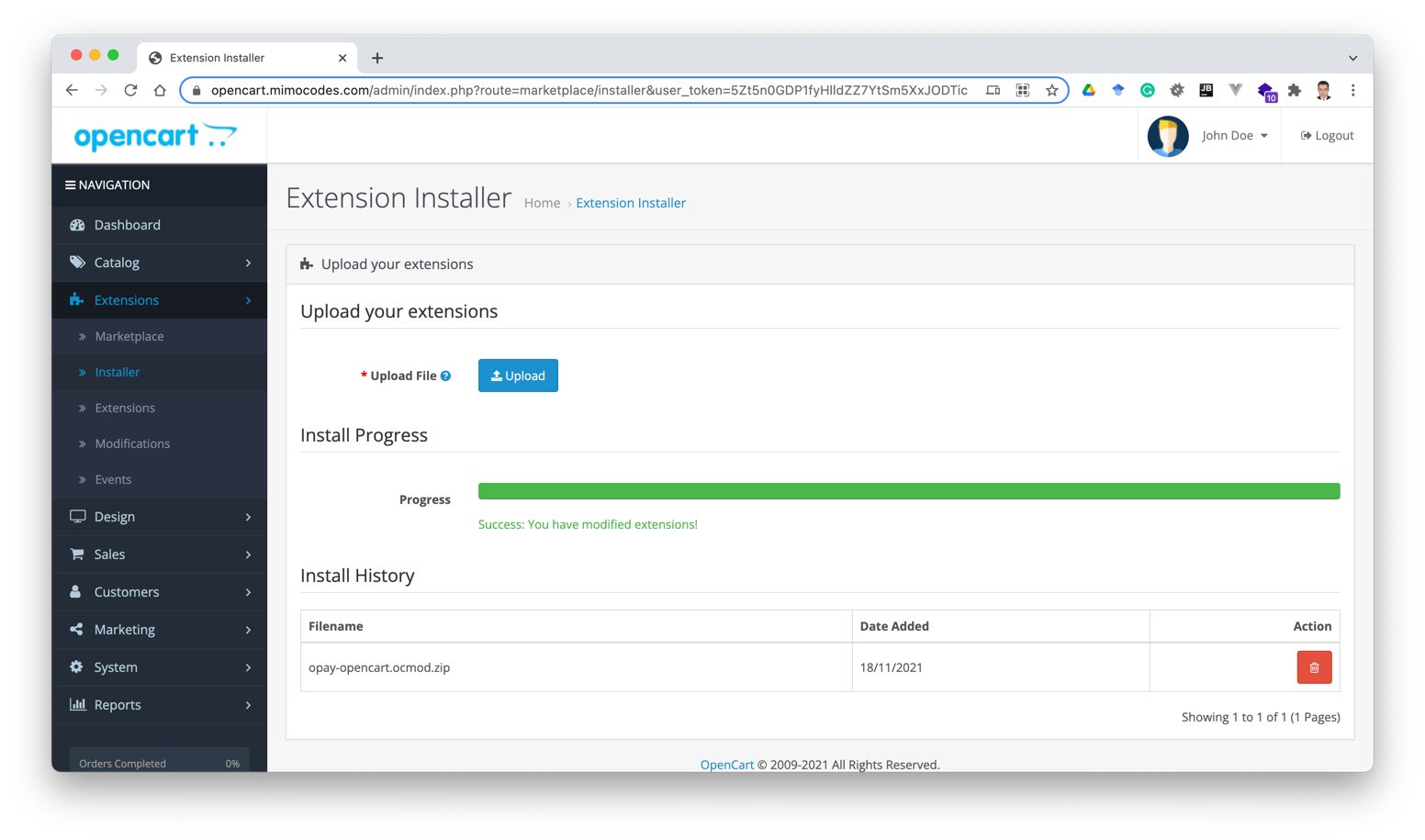
Upload. You will be asked to upload OPay plugin you have just downloaded. - Select OPay Opencart plugin:
opay-opencart.ocmod.zipand wait for the installation to finish once the upload has been completed. - Click on
Extensionsand enter the extensions configuration page. - Select
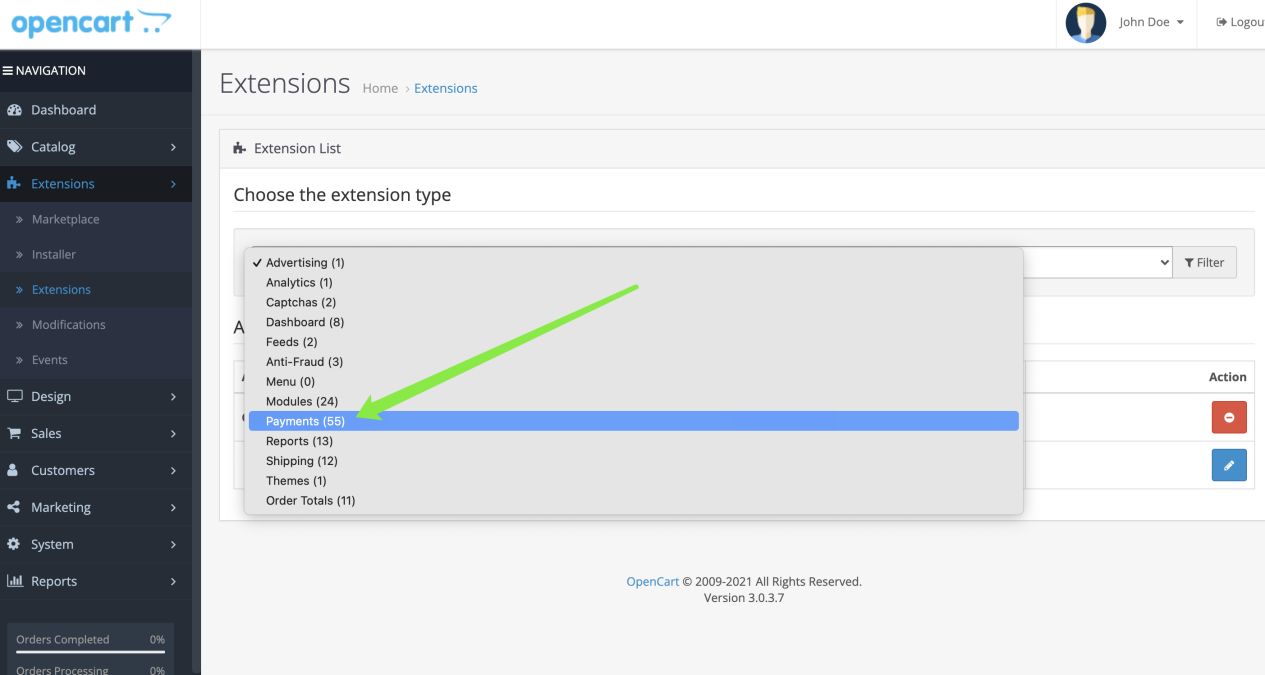
Paymentsin the drop-down list and edit payment configuration. - Click on
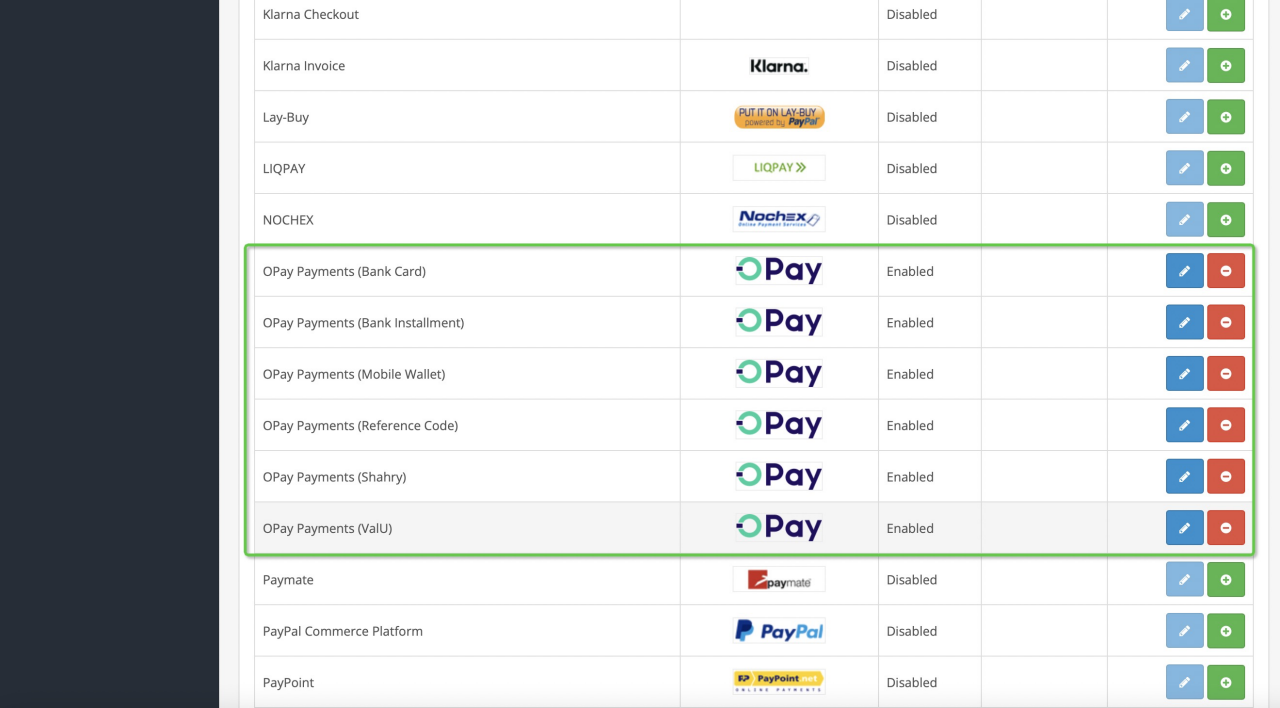
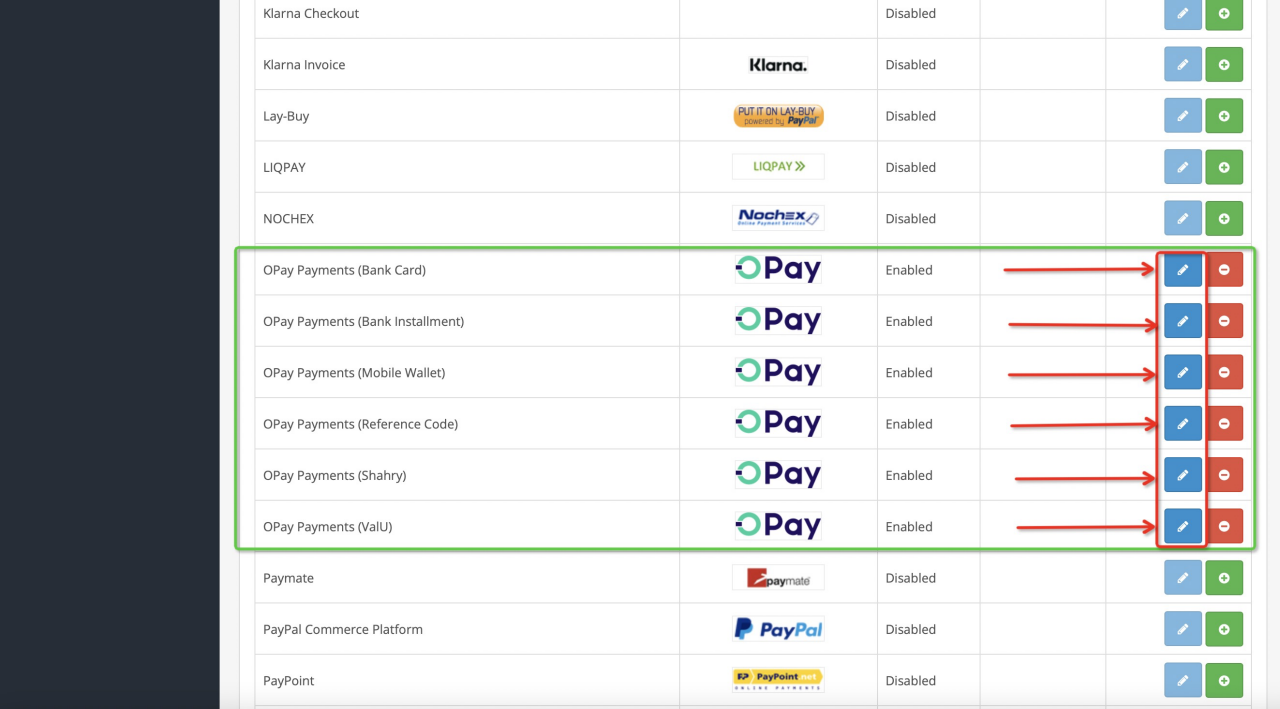
Extensions->Extensions, apply payment extensions filter, and scroll down until you see OPay payment methods. - Bank Card
- OPay Reference Code
- Shahry
- ValU
- Mobile Wallet
- Bank Installment
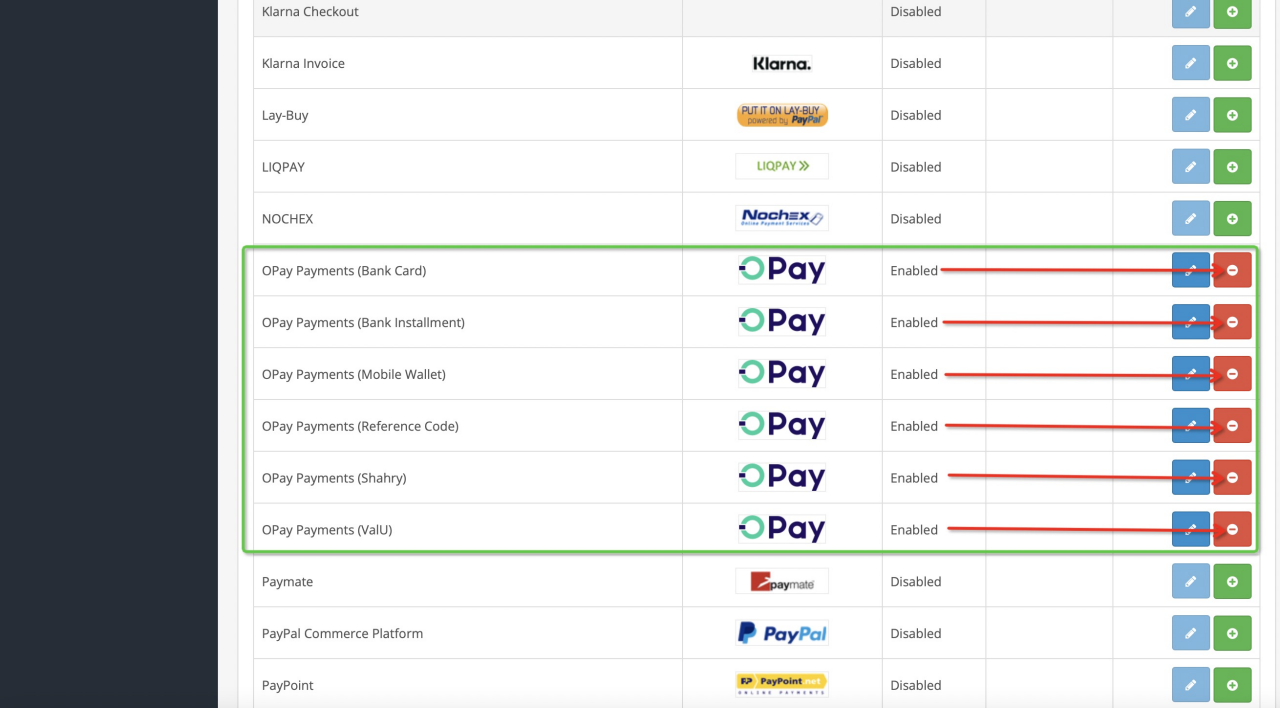
- Click on
+, to install the payment method you wish to accept payments with. - Well done, you have successfully installed the OPay plugin in your Opencart store.

Warning
Supported payment methods:
Configuration
- In your Opencart admin panel, navigate to
Extensions->Extensions. - In front of OPay logo, click on
Edit. - Within the "Configuration" page, please fill the fields as described in the following table:
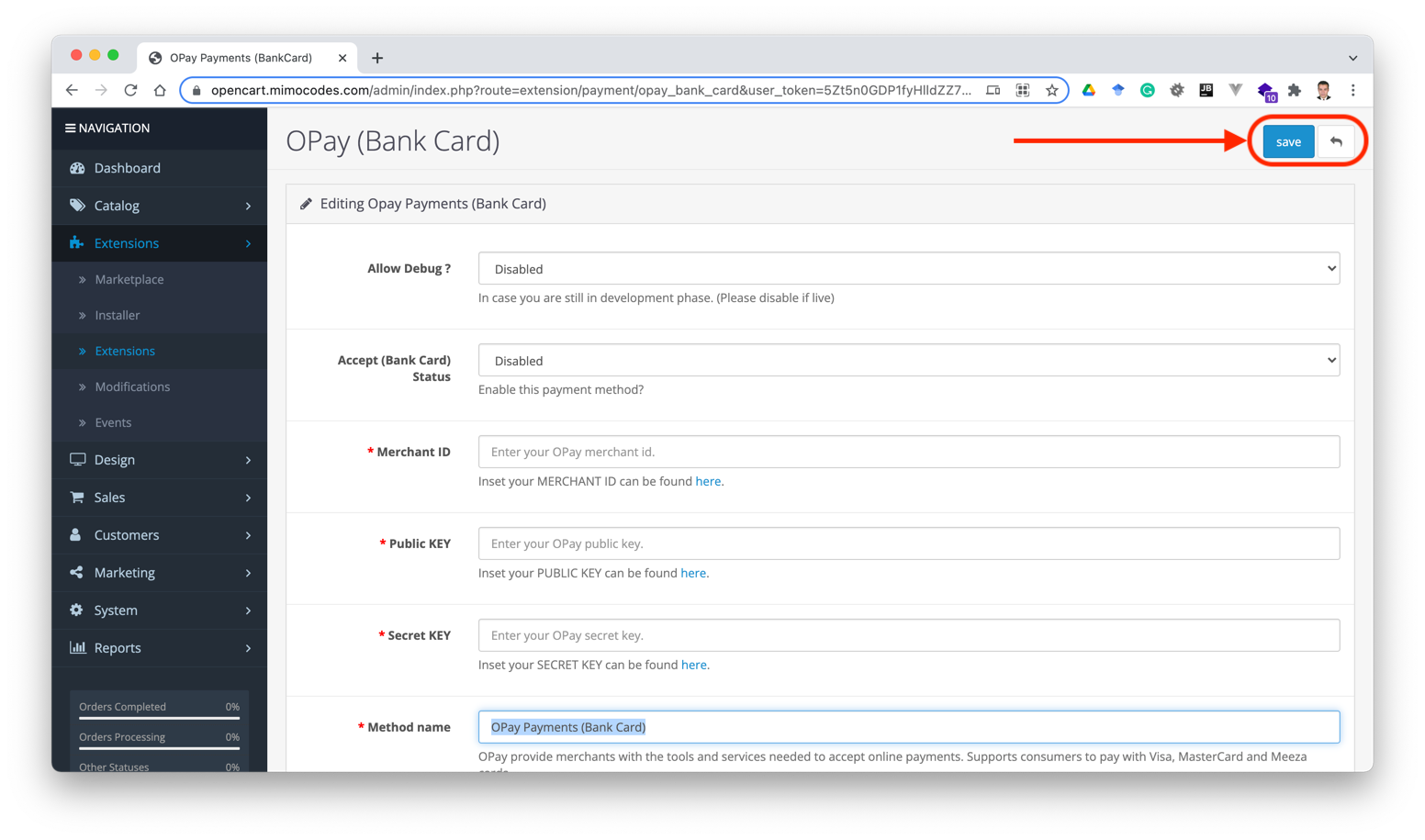
- Once you're done, click on save changes button.
- Repeat the above steps for the three payment methods provided from OPay.
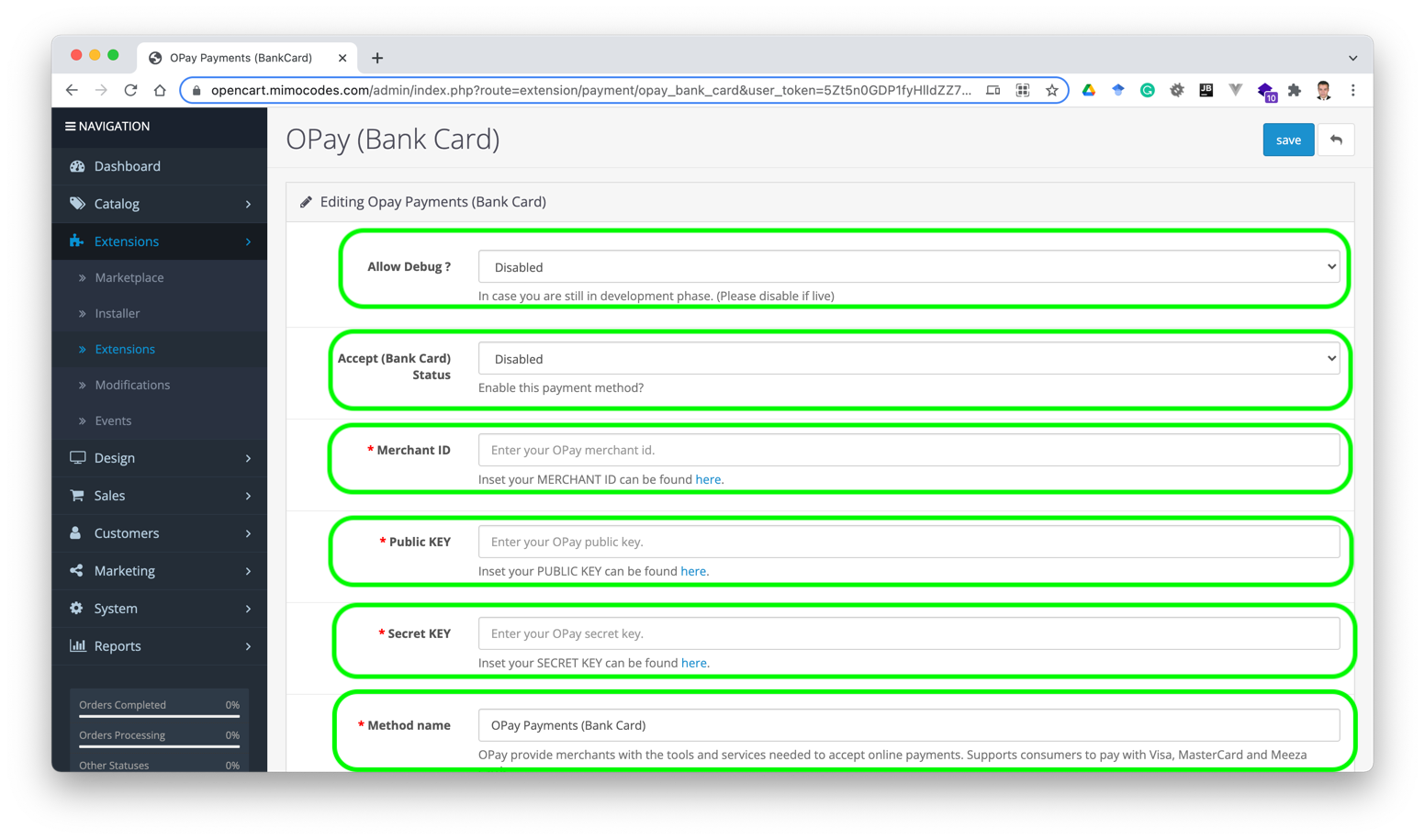
| field | description | example |
|---|---|---|
| Allow Debug ? | Enable in case you are still in development phase. Disable debug when turning into production mode. | Enabled/Disabled |
| Accept (method) Status | Control whether OPay can be used as a checkout payment method | Yes/No |
| Merchant ID | Your merchant ID you should have received it after creating an account. Set to your test merchant ID for testing, meanwhile, change for live merchant ID to start production mode. | 256612345678901 |
| Secret Key | Your Sandbox Secret key you should have received it after creating an account. Set to your test secret key for testing, meanwhile, change for live secret key to start production mode. | Secret Key |
| Public Key | Your Sandbox Public key you should have received it after creating an account. Set to your test public key for testing, meanwhile, change for live public key to start production mode. | Public Key |
| Method Name | The name to be displayed for your customers for this payment method. | OPay Payments (Bank Card) |
| Expire Time | Payment expiration in minutes. | 30 |
Congratulations!
Your Opencart store is now ready to accept payments through OPay.