OPay VirtueMart Plugin
Throughout this page, you will learn how to install, configure, and activate the OPay payment plugin in your VirtueMart store. After following closely the steps explained below, your VirtueMart shop will be able to start accepting payments through OPay's payment channels.
Store Preparation
The OPay payment integration with VirtueMart is simple and we've provided easy steps to help you get up and running!

Warning
Make sure you have an active OPay account or you can create an account.
Warning
You need to log in to the Dashboard.
- Get
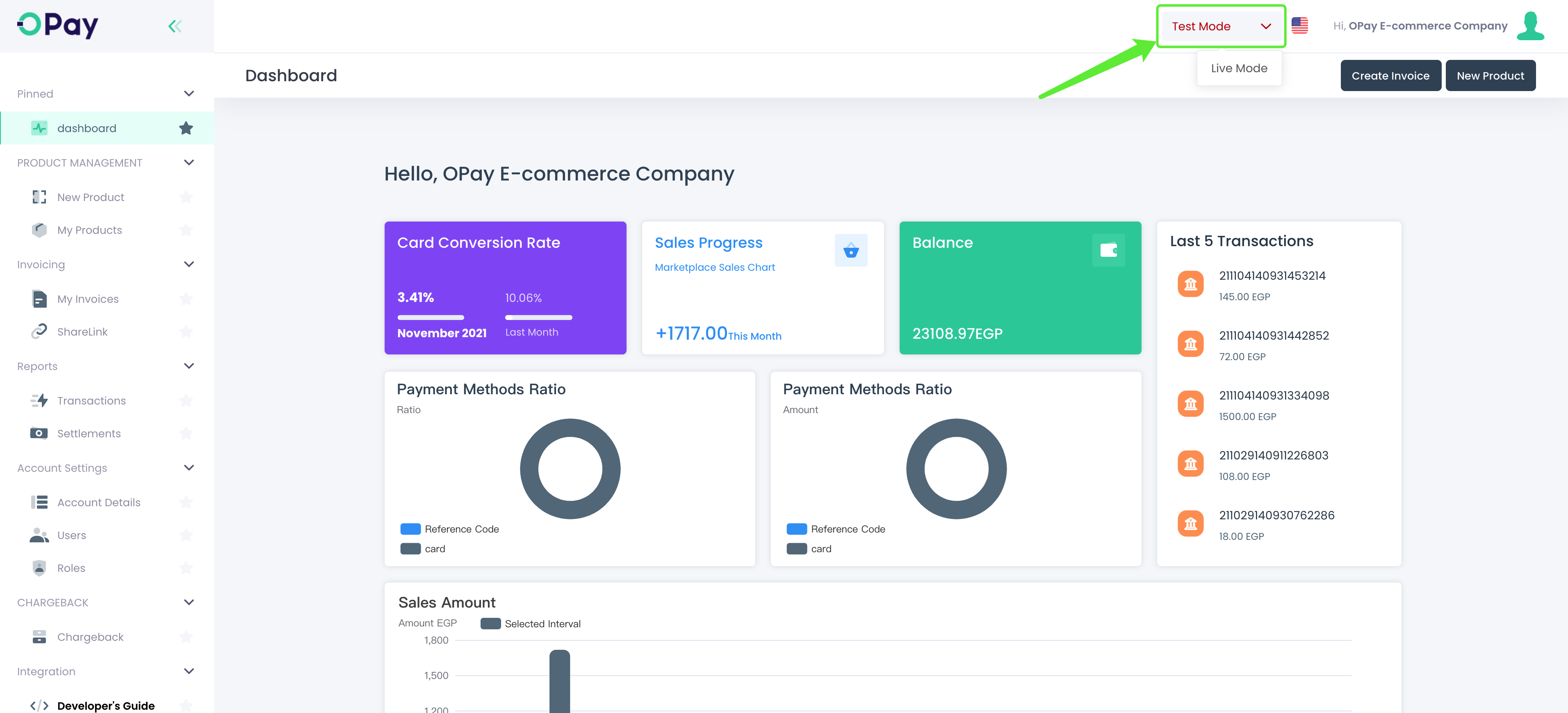
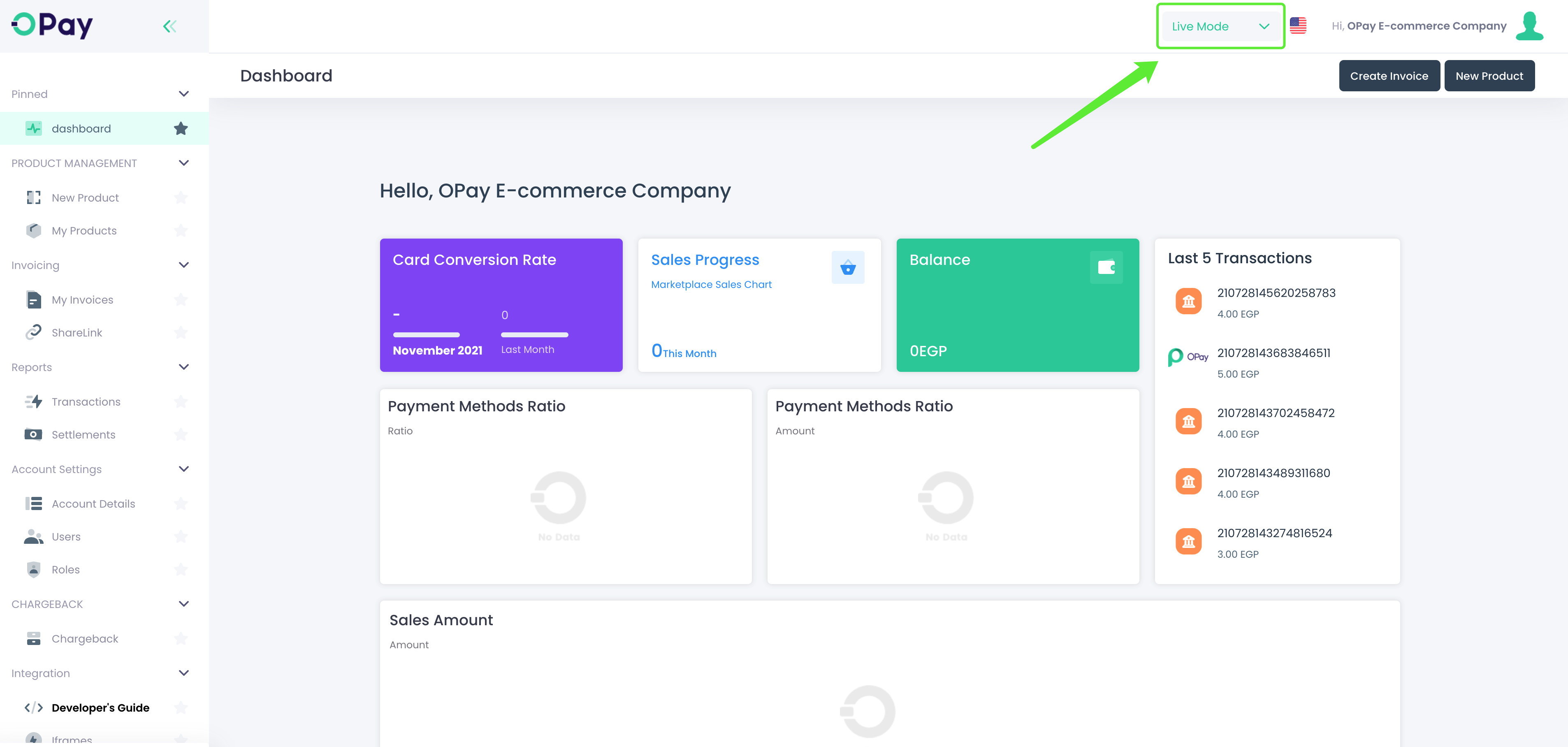
Merchant ID,Secret Key,Public Keyfor sandbox/production environmentAs shown in the figure below:Log in to your OPay account, switch to sandbox environment (Test Mode):
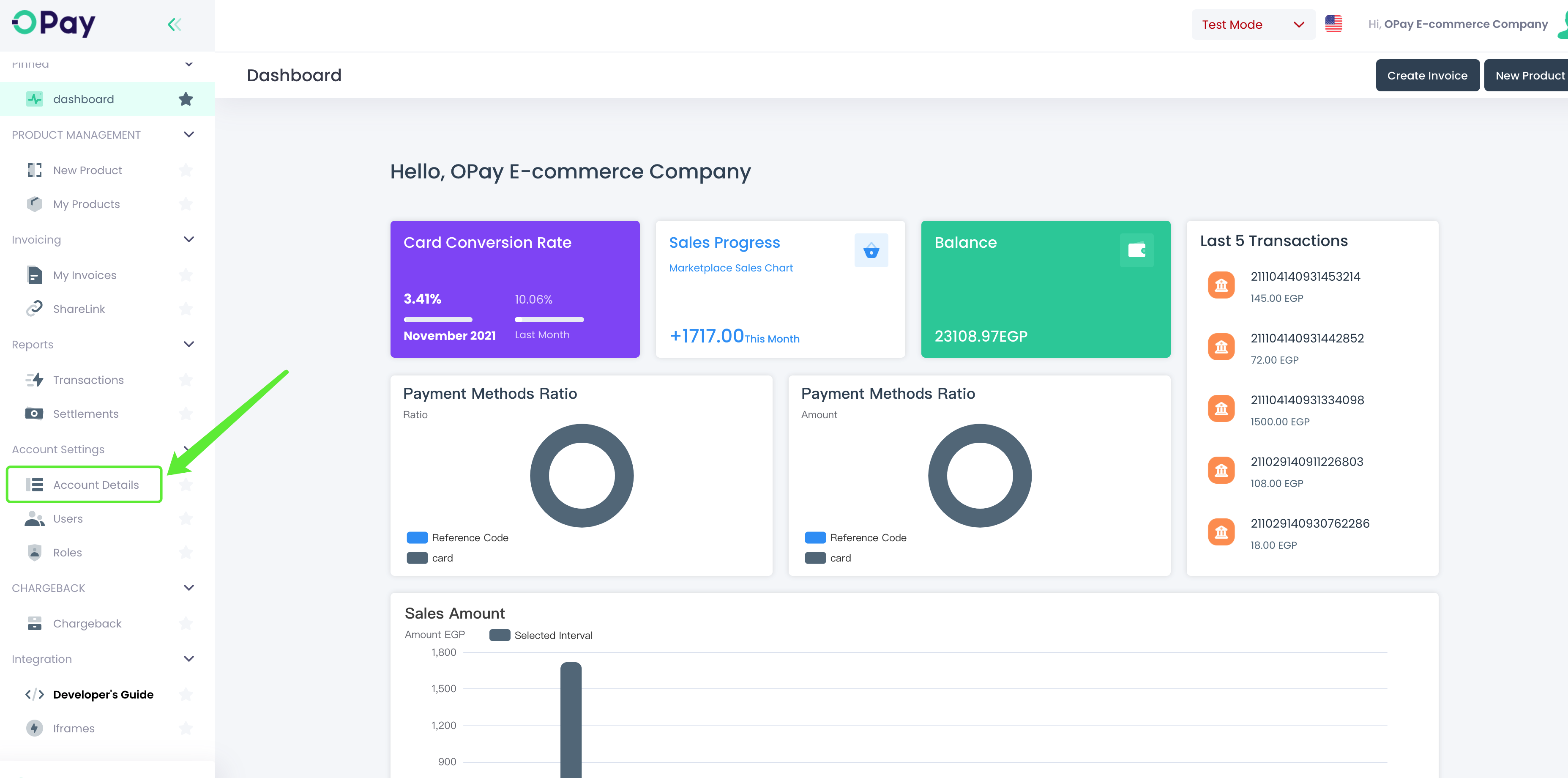
- Click on
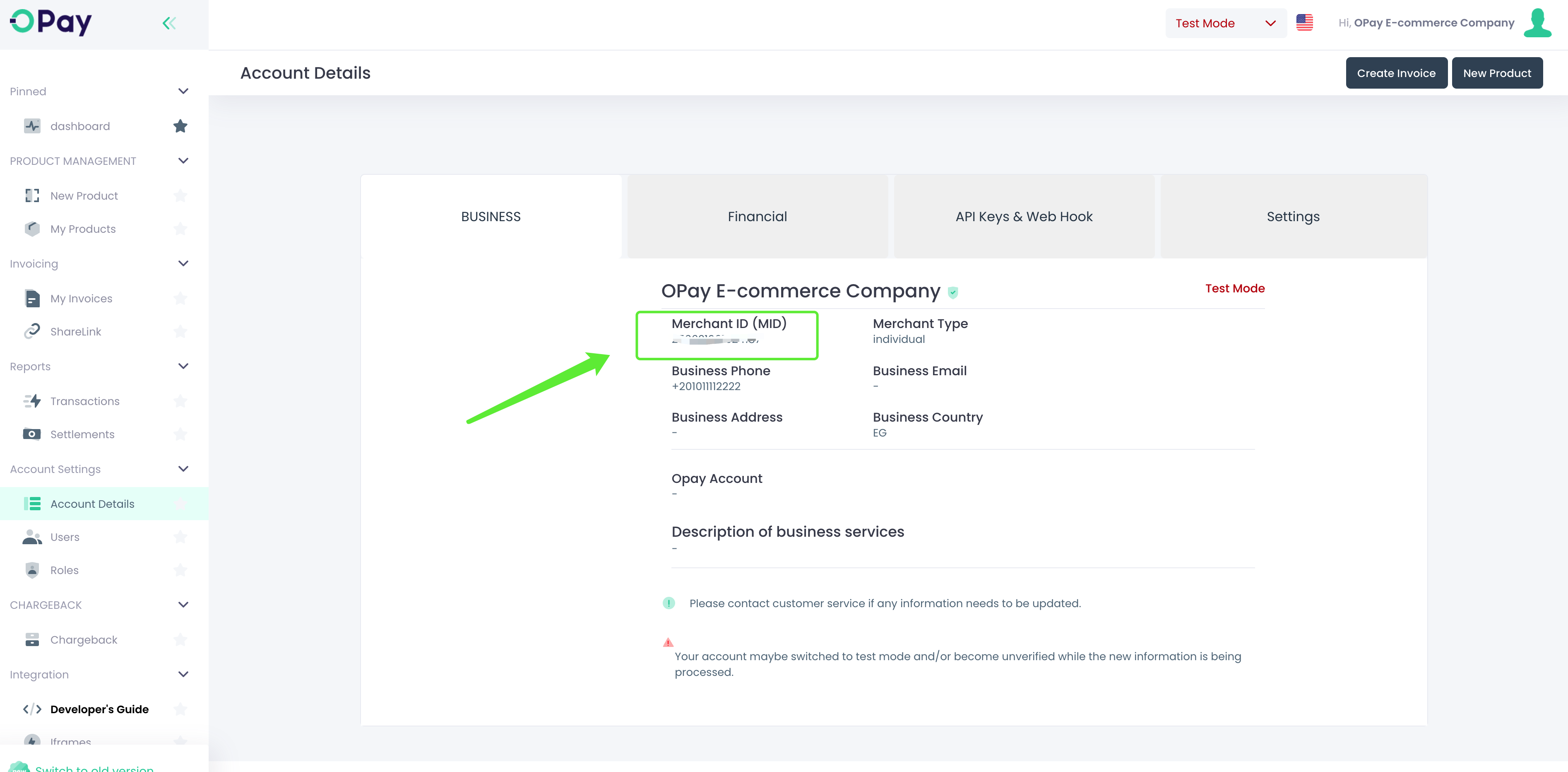
Account Details: Merchant IDis shown as below:- Please click
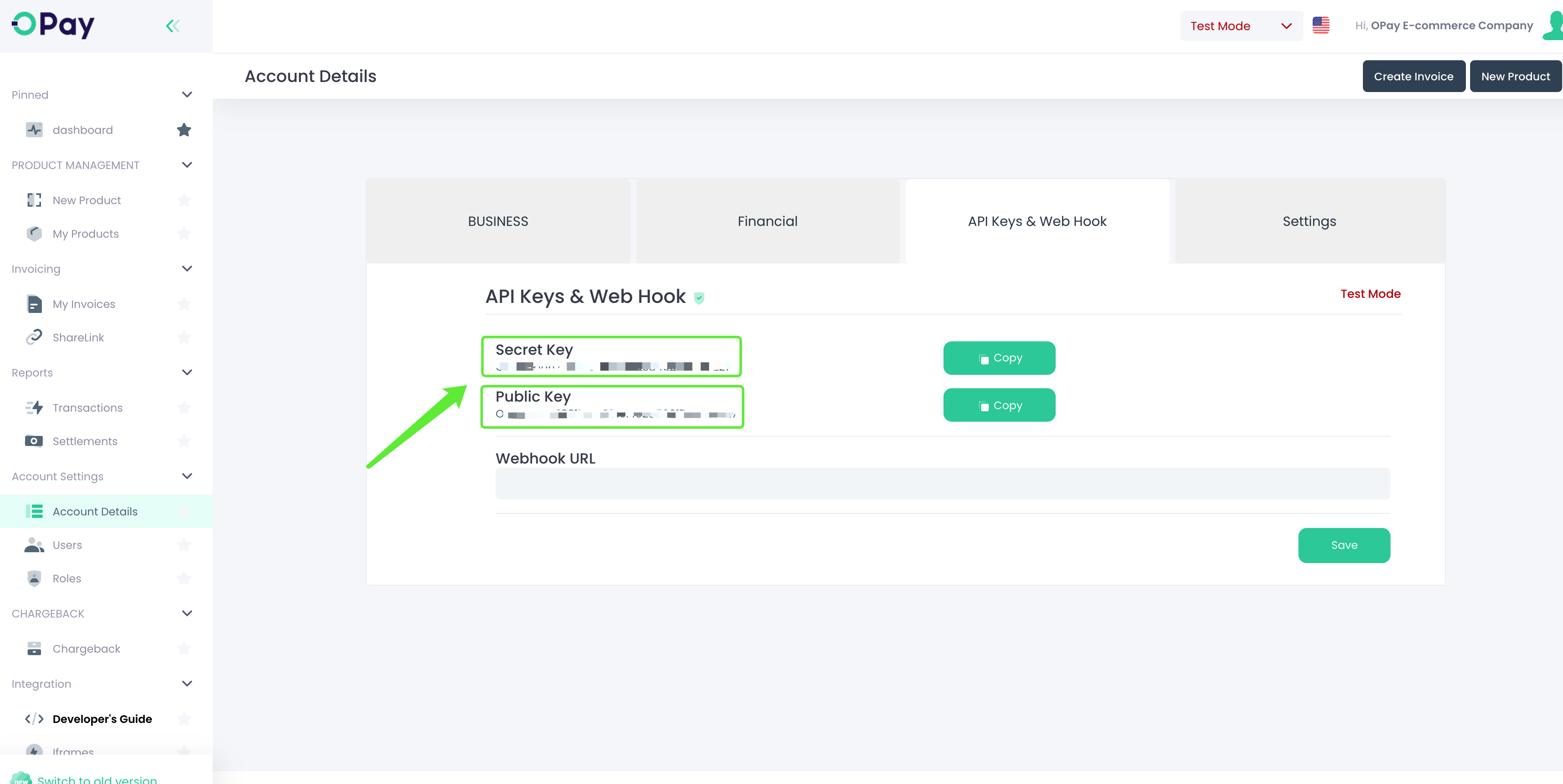
API Keys & Web Hookto access Secret Key and Public Key: - To get
Merchant ID,Secret KeyandPublic Keyfor production environment, please switch toLive Modeand repeat the above three steps: - Well done, now you're ready to setup your VirtueMart store to start accepting payments through OPay.
Store Setup
This section illustrates the steps you need to follow to configure your VirtueMart store.
- Login to your VirtueMart store admin panel.
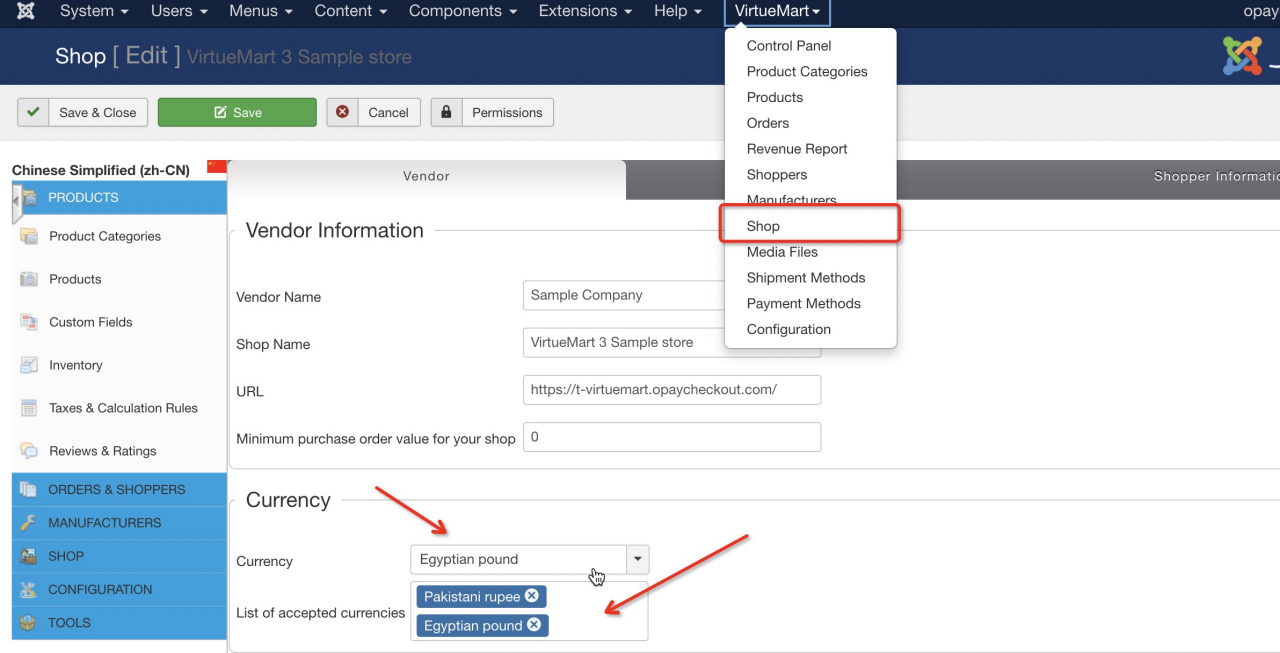
- Click on
Shopto find the currency setting options and modify the currency. - Click on
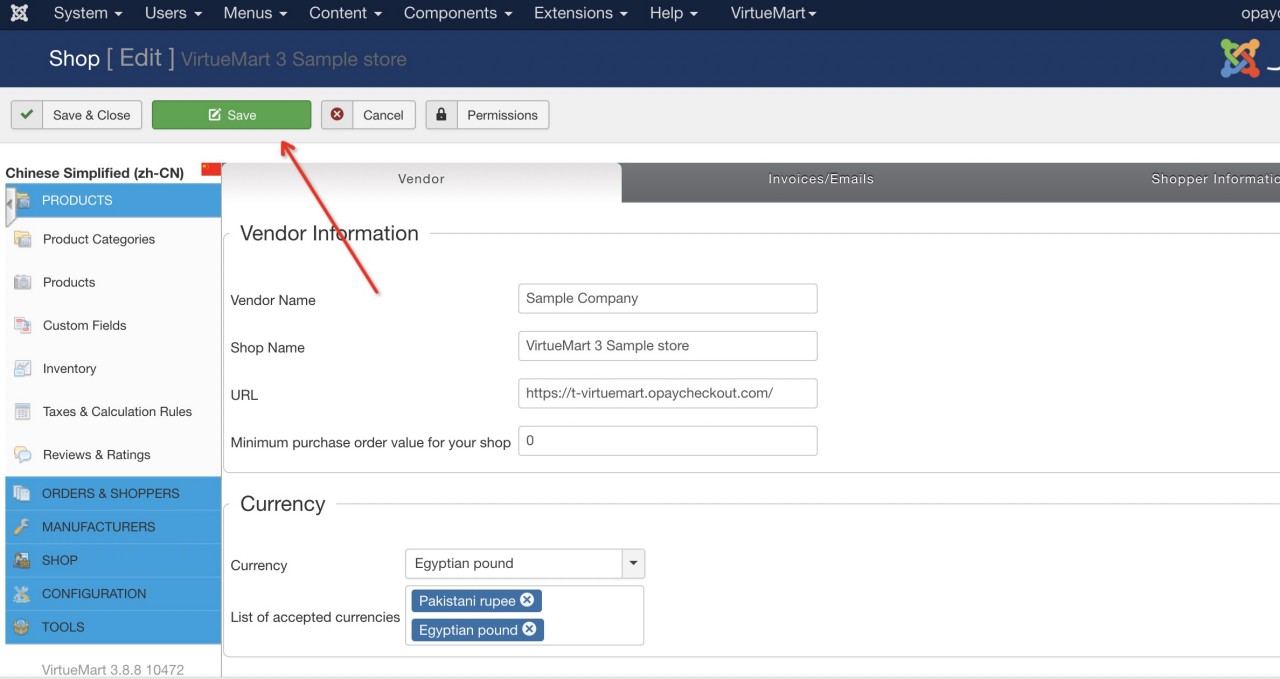
Saveafter the modification:

Congratulations!
Your VirtueMart store is now set up!
Installation
After completing the configuration, please follow the steps below to install OPay's VirtueMart plugin.
- the plugin.
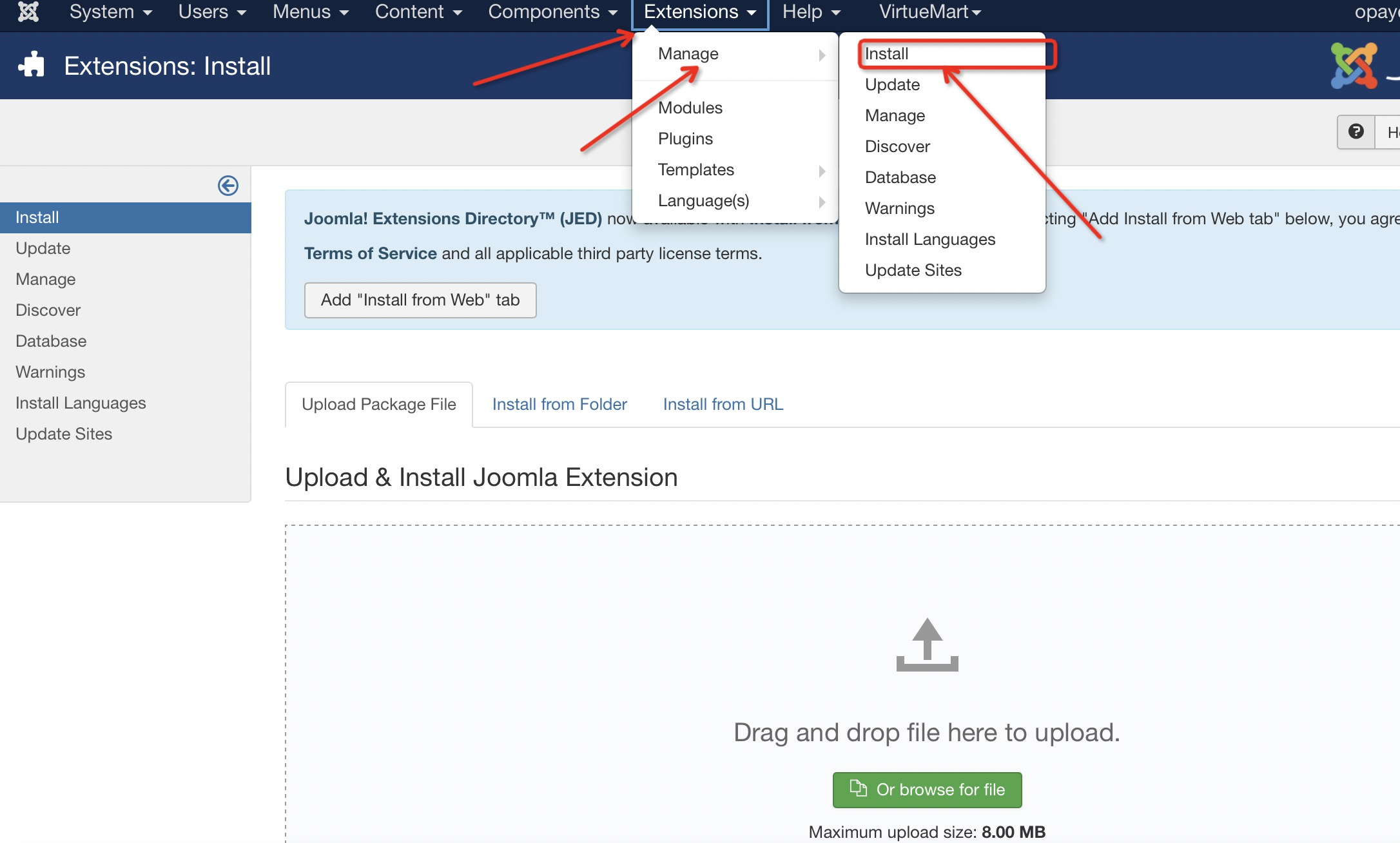
- Click on the
Extensionsto enter the installation page: - Click the
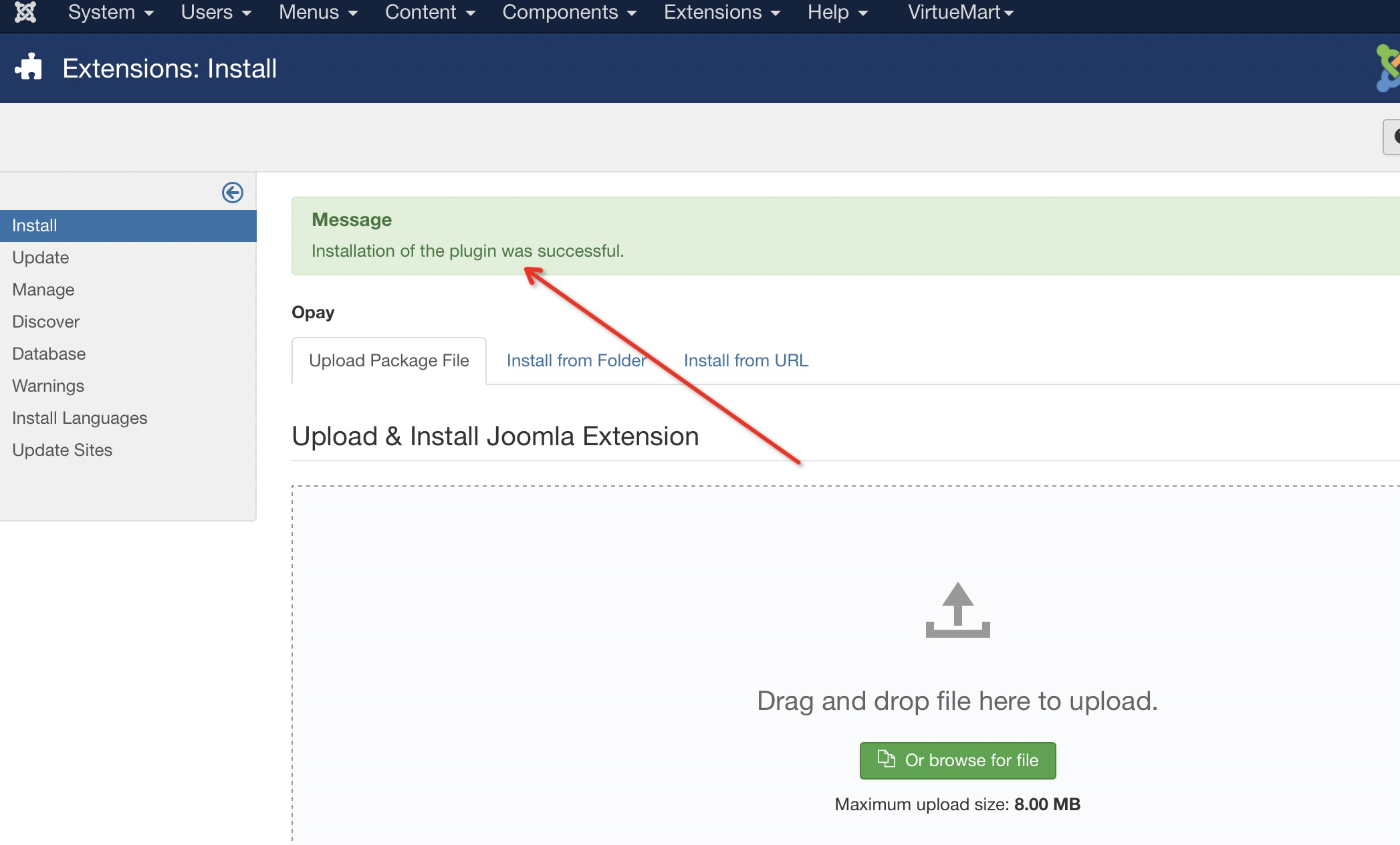
Upload button, to upload the OPay payment plug-in zip. package (upload and installation): - The figure indicates the completion of the installation:
- Find
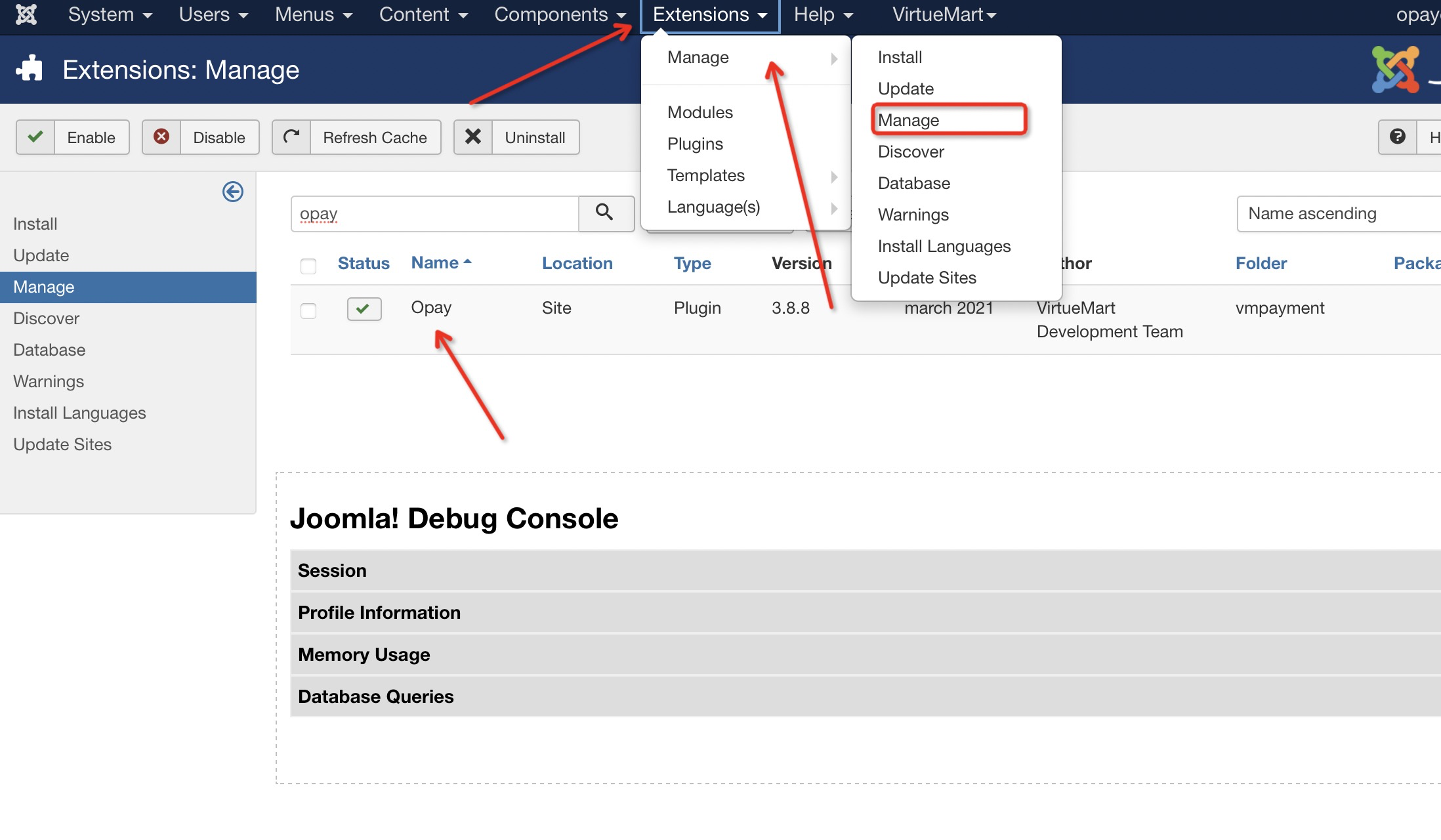
OPay in Extensions Management, andenablethe extension:
Congratulations!
You've successfully installed the OPay VirtueMart plugin!
Configuration
- Click on
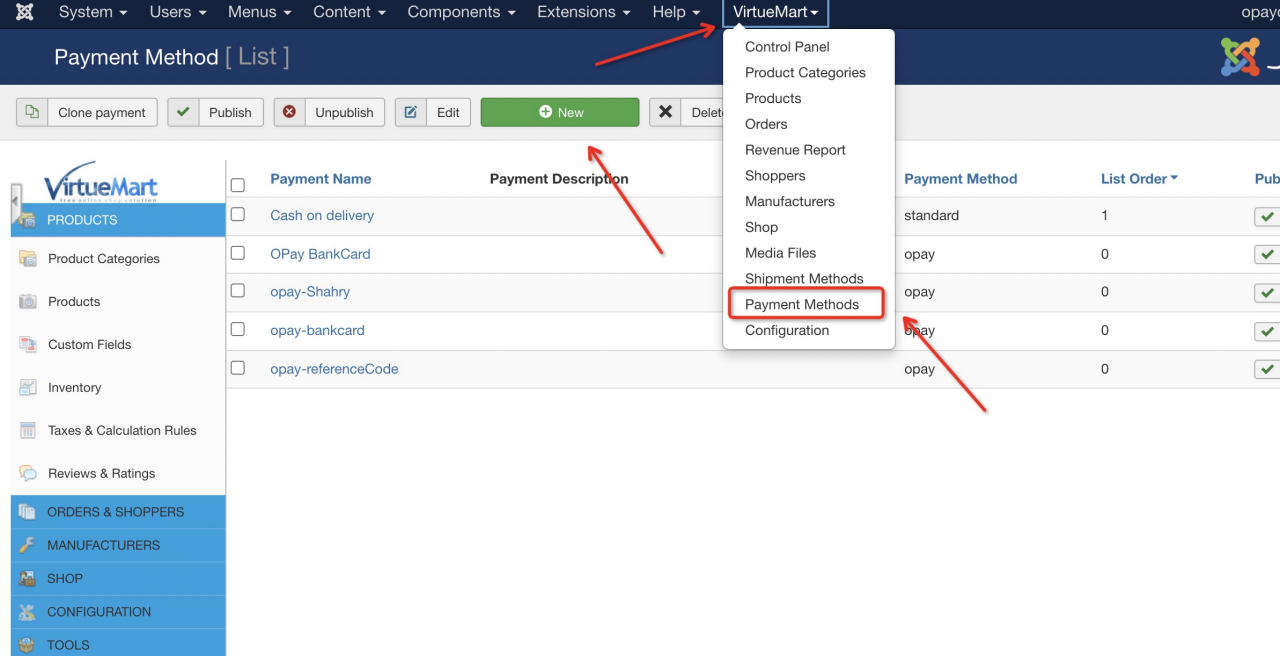
Payment Methods-> Newto enter the new configuration page: - Fill in the name of the new payment,
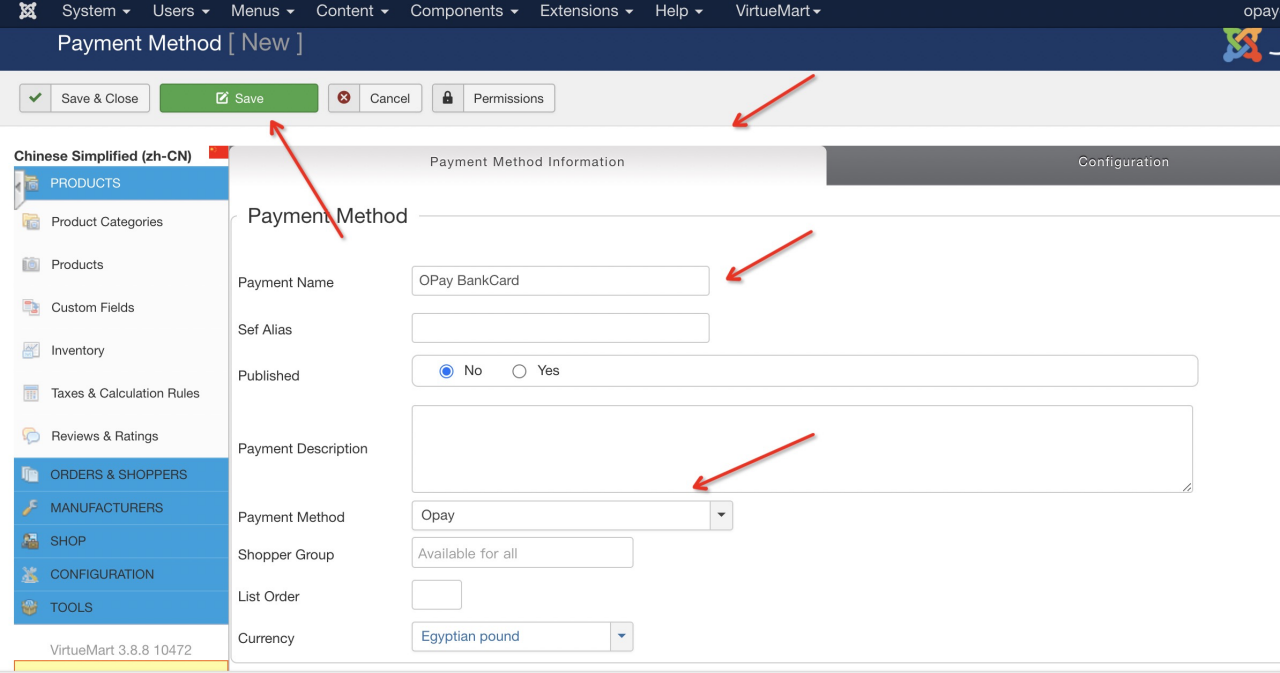
select OPay, and then click Save: - Bank Card
- OPay Reference Code
- Shahry
- ValU
- Mobile Wallet
- Bank Installment
- After saving successfully, click
Configurationon the right to see the OPay configuration page - Close the
production environment. Payment Method corresponds to three payment methods:Bank Card,Reference Code,Shahry,ValUandMobile Wallets - After clicking the
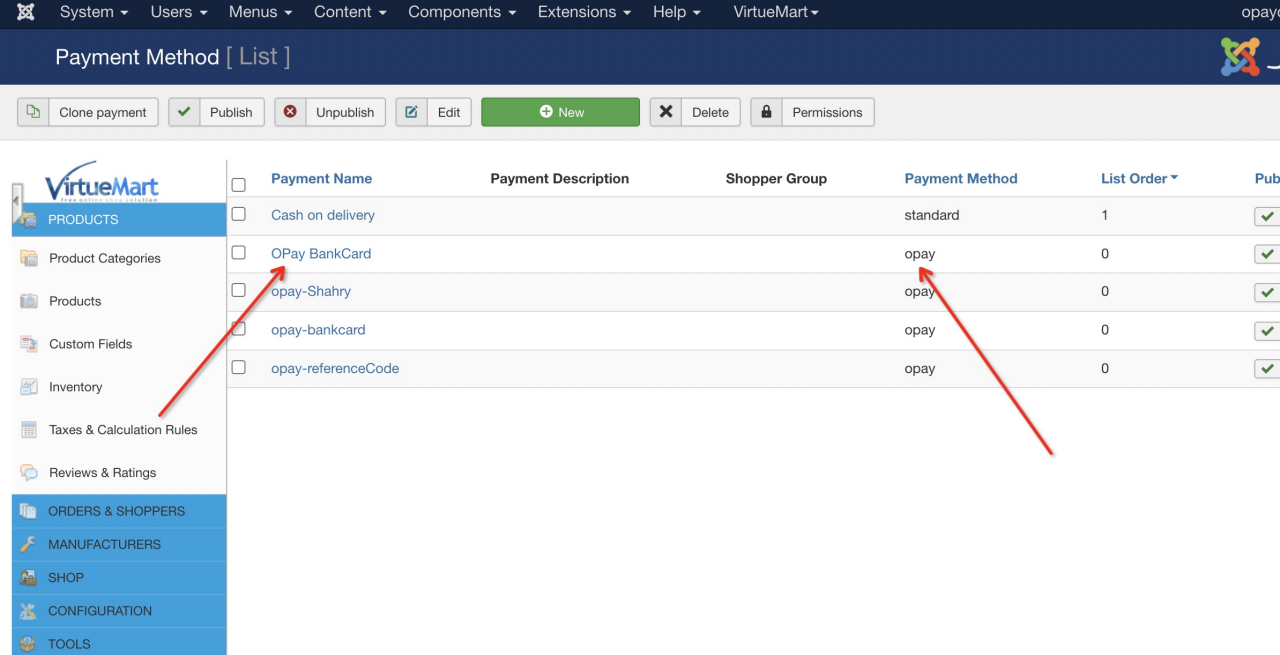
"Save" button, you can be seen in the Payment Method list.
Warning
Supported payment methods:
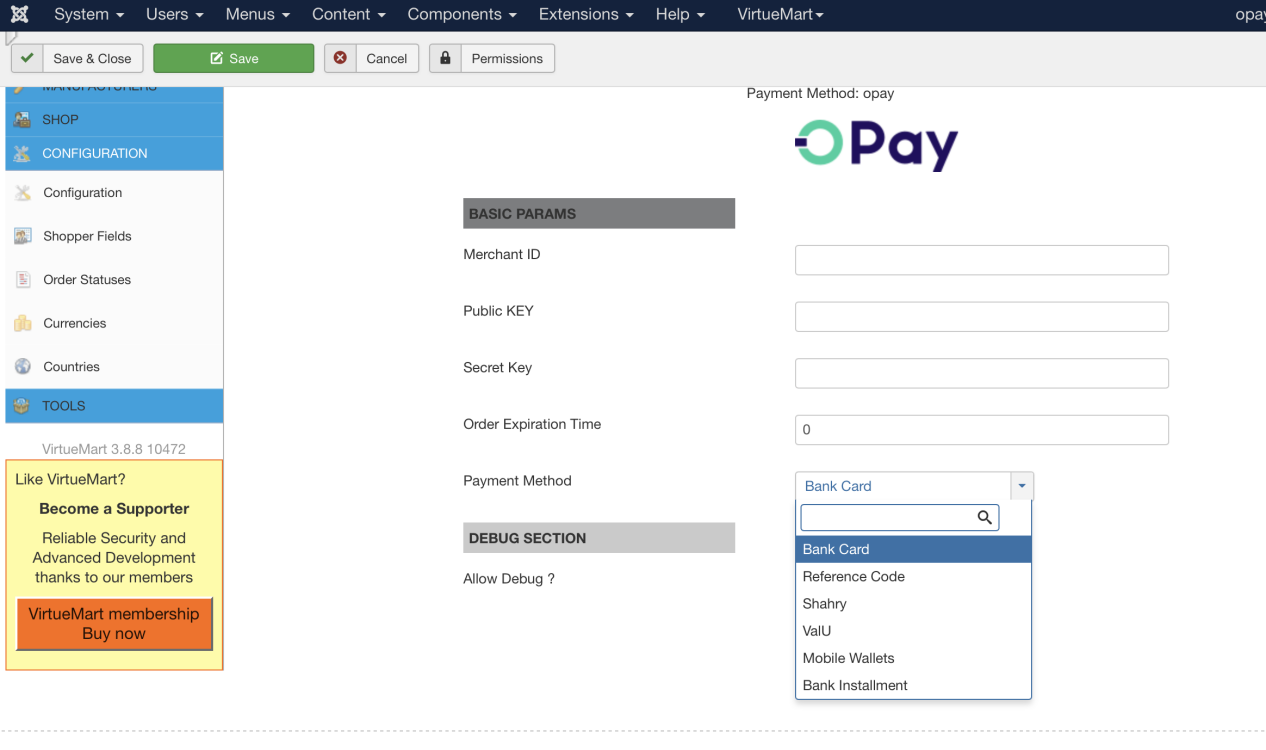
| field | description | example |
|---|---|---|
| Merchant ID | Your merchant ID you should have received it after creating an account. Set to your test merchant ID for testing, meanwhile, change for live merchant ID to start production mode. | 256612345678901 |
| Public Key | Your Sandbox Public key you should have received it after creating an account. Set to your test public key for testing, meanwhile, change for live public key to start production mode. | Public Key |
| Secret Key | Your Sandbox Secret key you should have received it after creating an account. Set to your test secret key for testing, meanwhile, change for live secret key to start production mode. | Secret Key |
| Order Expire Time | Payment expiration in minutes. | 30 |
| Payment Method | The name to be displayed for your customers for this payment method. | OPay Payments (Bank Card) |
| Allow Debug ? | Enable in case you are still in development phase. Disable debug when turning into production mode. | Enabled/Disabled |
Congratulations!
The OPay payment component installation is fully configured!